
Annotating Google Earth Desktop
Tutorial Contents
-
Prerequisites
-
Let's Get Started!
-
Add Placemarks
-
Add Paths
-
Add Polygons
-
Organize your Places with Folders
-
Embed Images in your Balloons
-
Embed YouTube videos in your Balloons
-
Save your project and share with others
-
Discussion and Feedback
-
What's Next
Prerequisites
Absolutely no programming skills needed!
In April 2017, Google Earth on Web was released, which puts Earth on the browser. However, for this tutorial, you will need Earth for Desktop installed on your computer. Download the latest version here.
Let's Get Started!
Open Google Earth Pro on your computer. You can download the latest version here.
In the Search Panel, enter “White Mountains, Bishop, CA 93514” into the Fly to box, and click
.
Google Earth will fly you to the White Mountains region.
Click on the “X” below the Search Panel to clear the map of all the results:
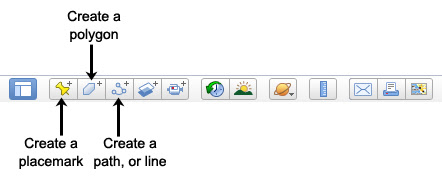
Find the toolbar above the 3D viewer:
Each button on the toolbar has a purpose. Find the tools for create a placemark, path, and polygon:


Let's add data!
Add Placemarks
Click the Add Placemark button
in the toolbar. A placemark is automatically added to Google Earth. Also, a New Placemark dialog box appears.
Move your placemark's location by clicking and dragging its icon, or by typing a latitude and longitude into the New Placemark dialog box.
In the New Placemark dialog box, type in a name for the placemark in the Name field. In this example, we typed “Bristlecone Pine Tree”.
Type in a description for the placemark in the Description field, which will be displayed when a user clicks on the placemark. In this example, we typed “This is one of the world's oldest living trees.”
Click on the icon button in the top-right corner of the window, and choose an icon for your placemark and press OK. In this example, we chose a tree icon.
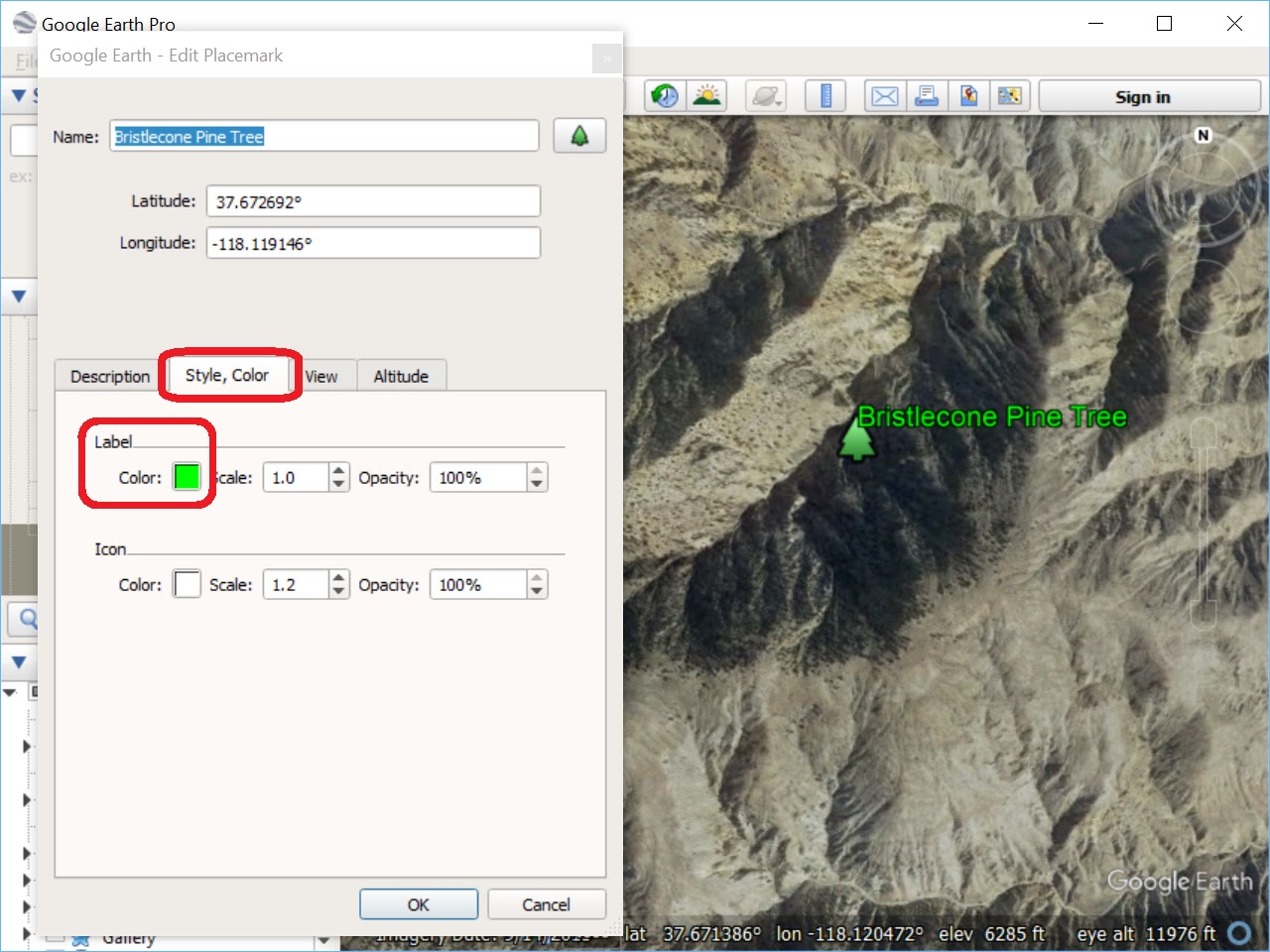
Click on the Style, Color tab, and choose a color, scale (or size), and opacity for the placemark icon and label text. In this example, we choose to change our label color to green.
When you are finished creating your placemark, click OK and your placemark will appear in the Places panel. When you click on your placemark's icon or hyperlinked name in Google Earth, a pop-up balloon will appear with your placemark's name and description.



Tips
To edit a placemark's location, name, or description, right-click on the placemark in the 3D viewer or in the Places panel, and choose Properties (on a PC) or Get Info (on a Mac). Click-and-drag the icon to change the location, or edit the name and description and click OK.
Add Paths
Click the Add Path button
at the top left of your map. A New Path dialog box appears, and your cursor changes to
.
Click on a series of places on the map to form a path. Each time you click, a new node is added to your path. You can also click-and-drag to create frequent nodes, which makes a smoother path. In this example, we will create a path marking the tree line.
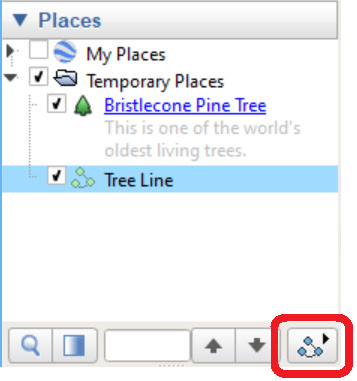
In the New Path dialog box, type in a name for the path in the Name field. In this example, we typed “Tree Line”.
Click on the Style, Color tab, and choose a color, width, and opacity for the path. In this example, we choose a dark green color, a width of 5.0, and an opacity of 75%.

Tips
To play a tour of the path and fly along its route, click the Play Tour button:
To edit a path's location, name, or description, right-click on the path in the 3D viewer or in the Places panel, and choose Properties (on a PC) or Get Info (on a Mac). Then you can edit the title and description and click OK. Right-click your mouse to delete recently-created nodes. You can also click-and-drag any nodes to reshape the path.

Add Polygons
Click the Add Polygon button
at the top left of your map. A New Polygon dialog box appears, and your cursor changes to
.
Click on a series of places on the map to form a polygon. Each time you click, a new node is added to your polygon. You can also click-and-drag to create frequent nodes, which makes a smoother boundary to your polygon. In this example, we will create a polygon around the White Mountains (you may have to zoom out to see the entire mountain range).
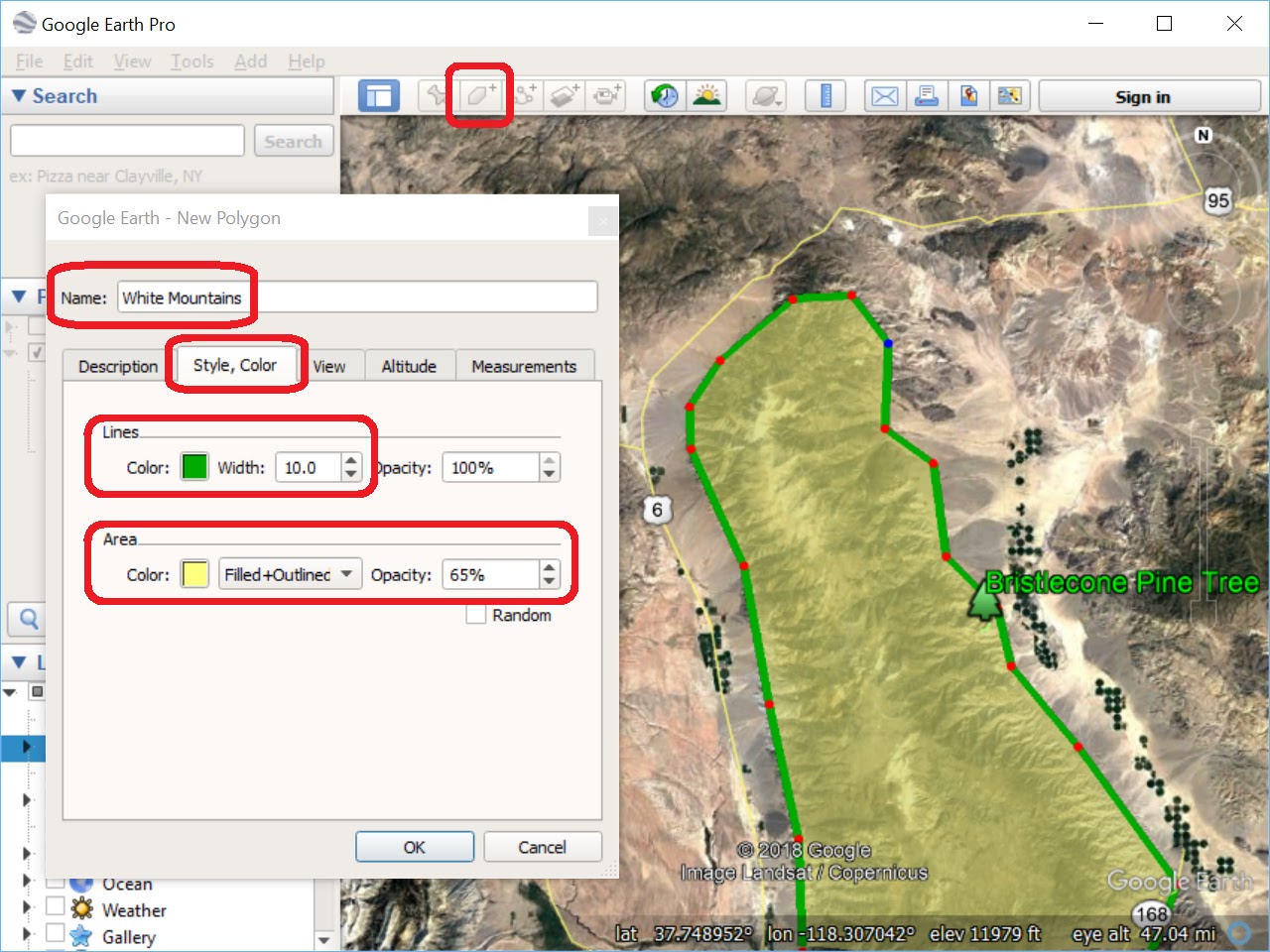
In the New Polygon dialog box, type in a name for the polygon in the Name field. In this example, we typed “White Mountains”.
Type in a description for the polygon in the Description field, which will be displayed in the polygon's pop-up balloon. In this example, we typed “The White Mountains are home to Bristlecone Pine Trees.”
Click on the Style, Color tab, and choose a color, width, and opacity for the boundary lines. Choose a color and opacity for your polygon area, and determine if you want the polygon filled and outlined, only filled, or only outlined. In this example, we chose green colors, a line width of “10.0”, and medium opacities.
Click on the Altitude tab, and change the altitude mode to “Relative to ground” (for more information on altitude modes, see the KML Reference guide). Then move the slider to increase altitude, or height, of the polygon if desired. Check the box to extend the sides, or walls of the polygon, to the ground.

Tips
To edit a polygon's location, name, or description, right-click on the path in the 3D viewer or in the Places panel, and choose Properties (on a PC) or Get Info (on a Mac). Then you can edit the title and description and click OK. Right-click your mouse to delete recently-created nodes. You can also click-and-drag any nodes to reshape the polygon.
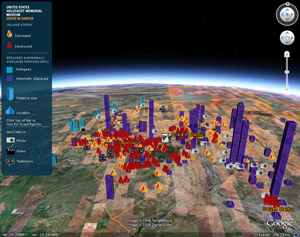
Polygons can be used as 3D bar graphs in Google Earth. One example is The USHMM's Crisis in Darfur layer, which uses polygons to represent number of refugees and displaced people.
Organize your Places with Folders
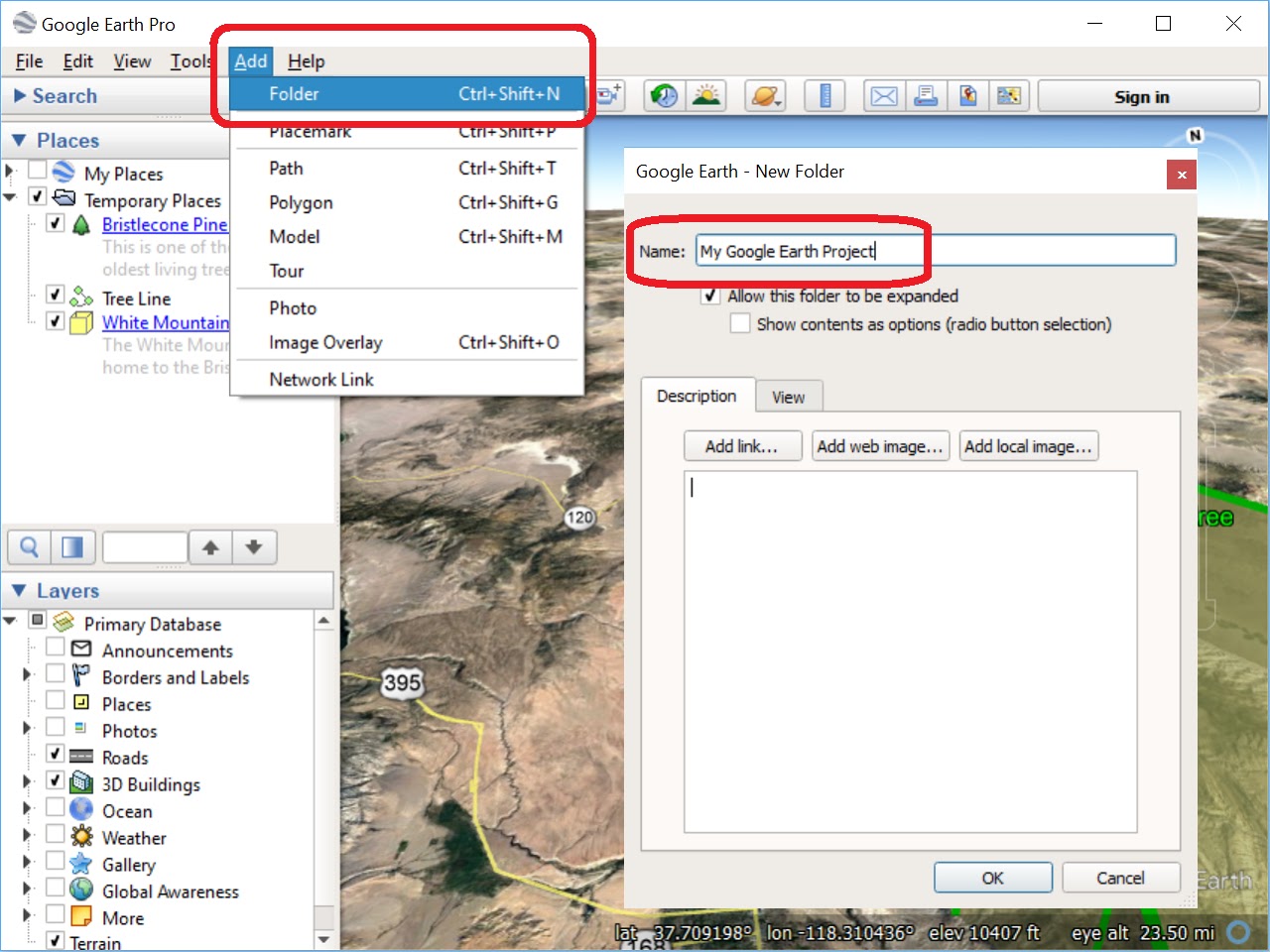
To add a folder, go to the Add menu and select Folder
In the New Folder dialog box, type in a name for the folder in the Name field. In this example, we typed “My Google Earth Project”.
Click OK. Your new folder is added to the Places panel.
Click-and-drag each place (your placemarks, paths, and polygons) into the folder to organize your project.

Tips
To play a tour of all the items in the folder by the order in which they are listed, click the Play Folder button:

To edit a folder's name or description, right-click on the folder in the Places panel, and choose Properties (on a PC) or Get Info (on a Mac).
Embed Images in your Balloons
Google Earth balloons can be customized using HTML. You can add font sizes, styles, and colors, links, tables, and images into your balloons by including it as HTML in the Description.
Choose a placemark you've already created, such as the placemark created earlier in this tutorial.
To edit the placemark, right-click on the placemark in the 3D viewer or in the Places panel, and choose Properties (on a PC) or Get Info (on a Mac).
Click on the “Add web image...” button, and copy and paste the following image URL (which references an online photo of a bristlecone pine tree) into the Image URL box. Then click OK.
http://earth.google.com/outreach/images/stories_adelia3.jpgYou will see the HTML code for the image automatically entered into the Description field.
On a new line add the text “<p>For more information about Bristlecone Pine trees, see the White Mountain Research Station.”
Select the text “White Mountain Research Station” and click on the “Add link...” button. Copy and paste the following URL (which reference the URL of the research station) into the Link URL box. Then click OK.
'http://www.wmrc.edu/'You will now see the HTML code for the link automatically entered around the text you highlighted in the Description field.
Click OK to finish editing the placemark.
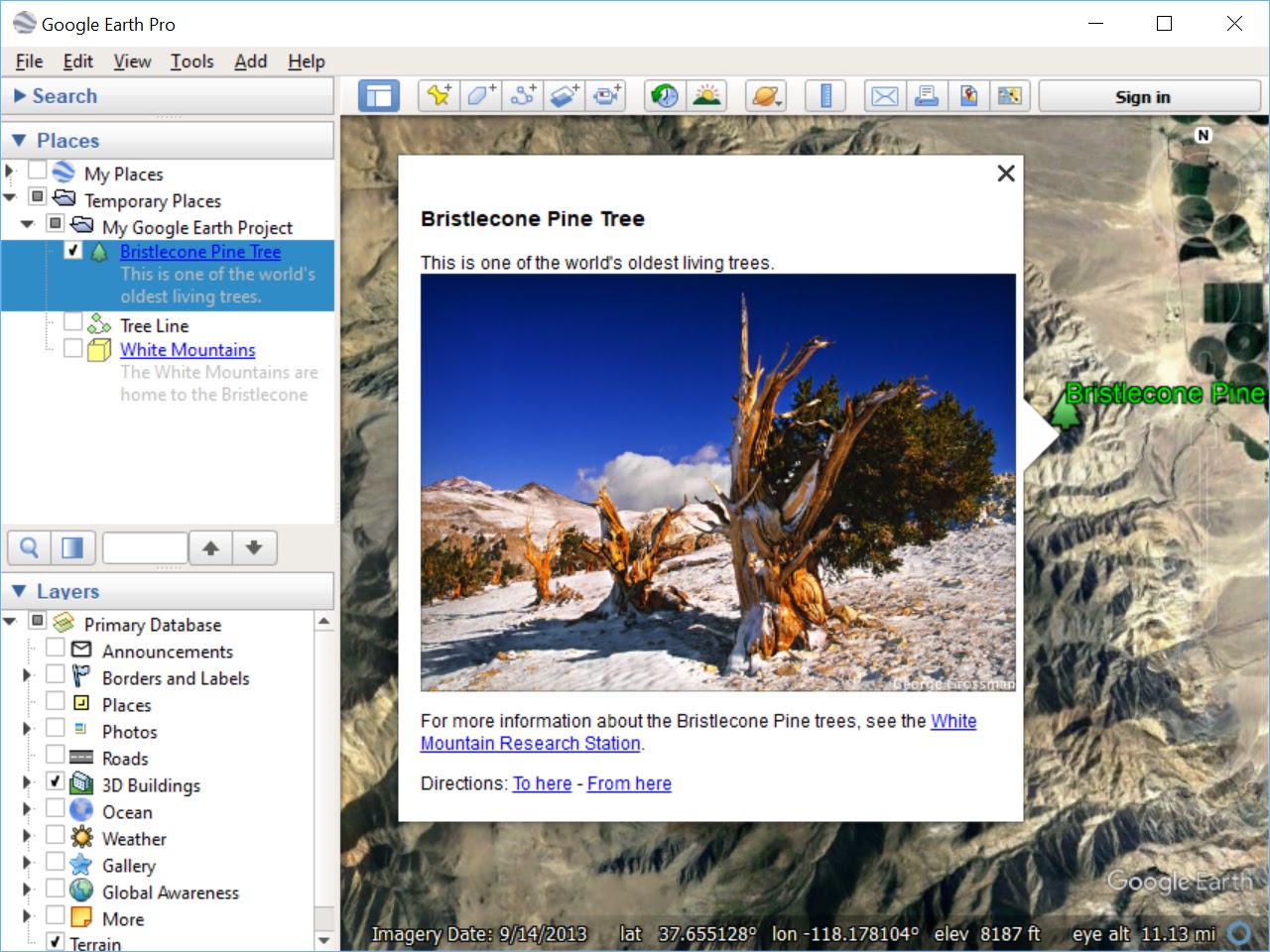
Click on the placemark in the 3D viewer, and you will see the image, text, and link in the placemark's balloon!


Tips
To add an image saved on your computer click on the “Add local image” button in the Description section of your placemark. You can then select photos from your photo library as well as images from your folders to add to your placemark’s balloon.
You can use a program like Adobe Dreamweaver or freeware NVU to preview the balloon design as you edit the HTML code.
The Spreadsheet Mapper tool based allows you to easily apply an HTML design template to the balloons of up to 400 placemarks. You can choose from six designs, and easily set the colors, style, images, and logos. See the Spreadsheet Mapper tutorial to learn how to do this!
Embed YouTube videos in your Balloons
You can easily embed a YouTube video into a placemark balloon in Google Earth.
Upload your video to YouTube or choose a video that's already uploaded.
On the YouTube video's webpage, find the Share button and click it to see more options. Find the Embed button and click it to see more options. Look for the checklist of options below the html code and select the option for “Use old embed code”. Now copy the HTML code. The code looks similar to this:
<iframe width="560" height="315" src="https://www.youtube.com/embed/ODS--K58YAY" frameborder="0" allow="accelerometer; autoplay; encrypted-media; gyroscope; picture-in-picture" allowfullscreen></iframe>Choose a placemark you've already created, such as the placemark created earlier in this tutorial.
To edit the placemark, right-click on the placemark in the 3D viewer or in the Places panel, and choose Properties (on a PC) or Get Info (on a Mac).
In the Description field, paste the YouTube HTML code which you copied in Step 2.
Click OK.
Now when you click on the placemark, its balloon has the YouTube video!


Save your project and share with others
Google Earth allows you to save your project to your computer in the .kmz file format.
Right-click on your project folder, and select Save Place As... or click on the folder and then go to the File menu, and select Save Place As...
Enter a name for your .kmz file, and click Save to save it to your computer. You will now find your KMZ file on your computer.


You can share the map you created by emailing the .kmz file to your friends and co-workers, or posting it on your website with a link to download it.
Tips
A Google Earth project file is a KML file, with a filetype extension of .kml or .kmz. KMZ files are compressed files that are smaller than KML files. If you used any custom images or photos from your computer, Google Earth will include them in compressed KMZ files so that others can see them too. We recommend saving your Google Earth projects as .kmz for a smaller file.
When you save your Google Earth KML project file to your computer, it is private. If you upload the file to a web server, or e-mail it your friend or colleague, then it is no longer private. This is similar to putting any file, such as a PDF file, up on the web or e-mailing it to someone.
Discussion and Feedback
Have questions about this tutorial? Want to give us some feedback? Visit the Google Earth Help Community to discuss it with others.


