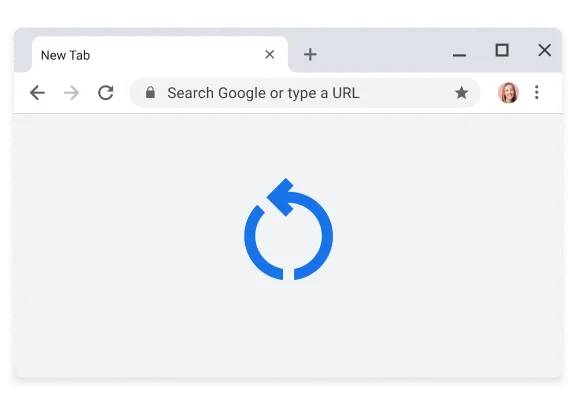
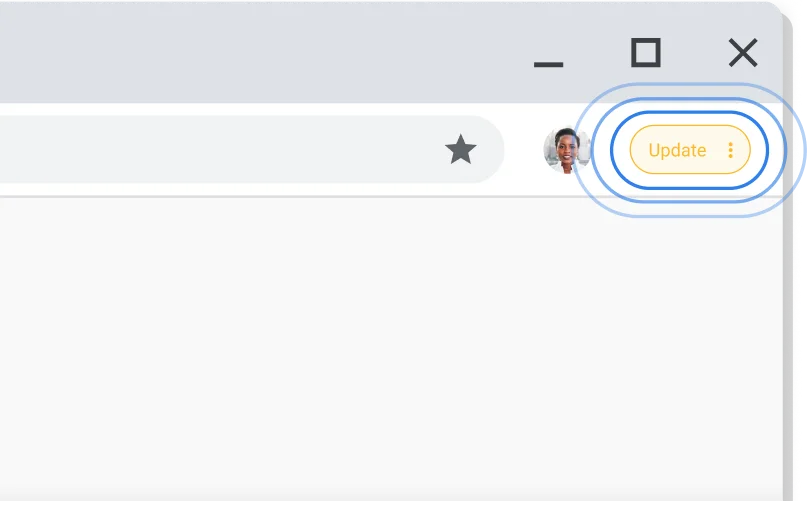
If you haven’t closed your browser in a while, you might see a pending update in the top-right corner of your browser, next to your profile picture.
Chrome will automatically update the next time you close and reopen Chrome. But if you want to apply the update right away, just click the three dots to the right of the message and select the first menu item.
Keeping Chrome up to date allows you to take advantage of the latest Chrome features and security updates to keep you productive, secure, and mobile.
Security
Keeps you secure
Automatic updates ensure you have the latest security features and fixes as soon as they’re available.
Features
The latest Google features
Get new features the minute they’re released by keeping Chrome up to date.
Improvements
Improved speed and performance
Find new performance settings and optimizations to keep Chrome fast and efficient.
Frequently asked questions
How do I update Chrome?
Chrome updates automatically. However, if you haven’t relaunched Chrome in a while, or if your mobile device’s app store settings don’t allow automatic updates, you may need to update Chrome manually. Here’s how:
On a computer: In the top-right corner of your browser, click New Chrome available. Then, select Relaunch to Update.
On Android devices: Open the Play Store app and tap your profile icon, then Manage apps & device. Under Updates available, find Chrome and tap Update.
On iPhone and iPad: Open the App Store app and tap your profile icon. Under Available Updates, find Chrome and tap Update.
To check for Chrome updates, follow the instructions for the type of device you’re on:
On a computer: You can find available updates by opening your Chrome settings and selecting About Chrome.
On Android devices: You can check for a new version by opening the Play Store app, tapping your profile icon, then Manage apps & device. Tap Updates available to see if Chrome has a pending update.
On iPhone and iPad: You can check for a new version by opening the App Store app and tapping your profile icon. Scroll to Available Updates to see if Chrome has a pending update.
For more details about checking for Chrome updates, see Google Chrome Help.
How do I update my Chrome extensions?
Chrome updates your extensions automatically when you open Chrome. It also checks for updates every few hours.
If you want to update an extension immediately, go to chrome://extensions and turn on Developer mode using the toggle in the top-right corner. Then, click the Update button that appears.
I heard Chrome has a critical security update. What should I do?
A Chrome critical security update is our way of closing a software loophole before anyone can misuse it. If you hear about “critical” or “emergency” updates, it just means we’ve fixed the loophole and are rushing the fix to your device.
These updates are treated just like any other Chrome update; Chrome will update to the newest version automatically based on your settings. If Chrome has an update for you, or if your app store settings don’t allow for automatic updates, a notice will show in the toolbar. You can also see “How do I update Chrome” for instructions to update it manually.
Help when you need it
Need more assistance with Chrome? Explore our help center to learn more about updates and other ways to use Chrome.